![Image_20240521_115151.png]](https://help.shootsta.com/hs-fs/hubfs/Image_20240521_115151.png?height=37&name=Image_20240521_115151.png)
Step 1. Create and Name your Video Project
- Click 'New Project' and select 'Pro'.
- Enter a Project Name. Relevance is key to naming, and a naming convention that will distinguish this project from others in Shootsta could really come in handy. Please note that if a title hasn't been entered the Continue button below will not be active.
- Select the type of project you want to create: Video, Animation, Webinar or Podcast.
- Click 'Continue' to go to the next step.
Step 2. Tell Us About Your Project and your Objectives
You can brief your editor in multiple ways. You have the option of the following:
1. You can brief directly into Shootsta using the 'Tell Us More About Your Project' section.
2. You can upload a briefing document as an attachment (or use the Shootsta Video Plan Template).
3. You can use a combination of the above.
The purpose of briefing your editor is to communicate your vision and ensure as much planning as possible goes into the editing process. While your dedicated Shootsta editors are highly skilled, providing clear direction helps them better understand what you’re aiming to achieve.
At Shootsta, we’ve found that the more planning you do upfront, the more likely your final video will align with your expectations and deliver a successful result.
Upload Attachments:
Do you have a video plan, script or storyboard you can share? Whether you have created any of these resources within Shootsta or separately, you can upload these kinds of documents to your brief in the 'Upload Attachments' section. Please note that assets to be used in the actual video edit should not be supplied here, only supporting documents. Assets can be supplied on the next page of the process.
It could also be beneficial to include Purpose, Style and Tone, Key Takeaways, Distribution, and Additional Notes in your brief.
Purpose
- Purpose: Who is this video for? Be as specific as possible about the people you want to reach and impact.
- Key Takeaways: What’s the one idea that you want your audience to remember from the video? Make sure it links back to your Objective! Stick to a single key message; multiple messages make for less clear videos, lower engagement and less impact.
Style
-
Do you have any music style suggestions? At Shootsta we have full access to the royalty-free music libraries at Artlist.
-
Do you have any videos style suggestions?
Presenters:
Please let us know if we need to add any lower thirds to your video. Just type in the names and titles of your presenters or talent so your editor knows how to identify them and what to write for their lower thirds.
Step 3. Plan and Build
1. To upload assets, browse your computer or select assets from your Media Library, along with any audio recordings or still images we’ll need to create your video. You may also select Stock Assets (sourced from the unlimited stock library included with every Pro subscription).
2. Ordering Your Assets is important! You can drag and drop the assets you have uploaded into the order you would like your editor to see them. This will give some context to the order in which you would like your video to be edited.
3. Add Comments or Notes for Your Editor
You can provide feedback on each clip by clicking the action dots (…) on a clip and selecting Add Comments. If the clip includes a Notes to Editors section, you can use that as well.
Each comment is time-coded, making this one of the most effective ways to communicate your needs to your Shootsta Editor. Including details like the specific start and end points you want to keep in your final video is especially helpful and ensures your editor has all the information they need to deliver exactly what you’re looking for.
4. Once you have uploaded, ordered and commented on your clips, click “continue”, bearing in mind that you can return and modify your selections later if you wish (before submitting your video for editing).
To ensure your video turnaround time, we recommend submitting up to 25 minutes of footage and 50 files in total. For more details check out What is a Shootsta Video?.
Step 4: Script
The Script Editor is your space to craft your script for, more narratively-driven projects, or projects which require a voice actor. You can create your script directly in the editor or simply paste from another document.
Should you be experiencing writer's block, don't worry. Click 'Ai Compose' to have Shootsta AI help you with the writing.
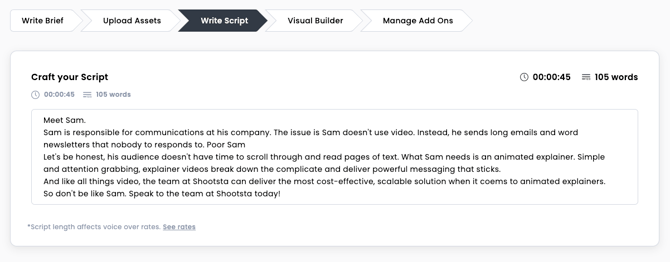 Note: If your project does not require a voice actor, writing a script in the Script Editor is not compulsory to submit a project.
Step 5: Visual Builder/Description
Once you have determined your narrative in the Script Editor, you may want to use the Visual Builder/ Description . This is where you can split your script into sections or scenes & apply specific visual direction or actual media clips directly to that scene.
Note: As with the Script Editor, if your project is not narratively-driven then the Visual Builder is not compulsory.
Split your script into scenes:
To split your script into scenes, use the Split or Add Scene tool. Simply place the text cursor at the place you want to break the script or click the 'plus' icon to create a new scene. Do this each time you want a visual change or new 'scene' in the video.
Give visual direction:
Add a description in the section of what the visuals on screen need to be.
Upload your own:
Alternately, you can add clips directly from the right hand drawer.
Add Notes/Comments to any scene:
Any clips added to a scene can be commented on to give detailed briefing instructions to your Editor or Animator. Simply click on the speech bubble icon then add comments directly on the clip.
Remember, the more detail you can provide your Editor or Animator about your vision in the Visual Builder, the easier it will be to nail your storyboard the first time!
Step 6: Managing Add-Ons and Confirming
Video Add-ons are additional services you can ‘add on’ to your Shootsta Video. If your project requires multiple final outputs, subtitles or a voice over, this is where you can select them.
What Video Add-ons are available?
- Captions / Subtitles
- You can choose between SRT captions and Burn-In captions. SRT captions are supplied as an additional file along with your video and allow the captions to be turned on or off in your video player of choice.
- Social Iterations
- Social iterations can be used when a project requires multiple different outputs, such as when a video may need to be exported at different resolutions in order to post to social media channels
- Voice Overs
- Selecting the Voice Over add-on will open an additional menu where you can browse, search and filter through our available Voice Artists and preview samples of their voices before selecting them. You will also be prompted to give direction on how you'd like your script delivered in terms of mood and style (e.g. authoritative, friendly etc.), as well as provide any pronunciation guides if necessary.
Step 7: Submitting
Now your clips have been uploaded and ordered and you have briefed your Shootsta editor on your project, you can review the add-ons and cost before submitting your project for editing.
If you click 'Confirm', you will receive an email confirming submission of your Project. Your Project will be visible in your Project Dashboard as In Progress alongside a countdown timer showing how long you should expect to wait before your first cut is returned to you.
Step 8: Check your Email!
You should have received an email notification if your video has been successfully submitted. If you haven't received an email, check your spam filter or reach out to the team to ensure we've received your project submission.
Email Notification View:

Step 9: Track your video project
You will receive email and in-app notifications once your video has been submitted for approval and completed. You can also manage your videos by accessing your Pro page via the sidebar on our site.