![Image_20240521_115151.png]](https://help.shootsta.com/hs-fs/hubfs/Image_20240521_115151.png?height=37&name=Image_20240521_115151.png)
Media Library Folders ( Formerly Media Library Tags)
You can now organise your Media Library assets using folders (powered by our new tagging system). Folders work like Inbox labels — meaning one asset can belong to multiple folders, and folders are shared across your entire organisation's Shootsta Workspace.
What Are Media Library Folders?
Folders are a simple way to group and filter assets without moving or duplicating them.
- Assets can belong to multiple folders
- Folders are visible to everyone in your organisation's Shootsta Media Library
- **Adding/removing a folder never deletes the asset
Where to Find Folders?
Go to Media Library and you’ll see a new Folders sidebar on the left-hand side.
This sidebar shows:
- All folders in your Organisation's Media Library (all of your Organisation's Media Library Tags have been converted to Media Library Folders)
- The number of assets in each folder (number badge next to the Folder Name)
Click a folder to instantly filter the Media Library view.
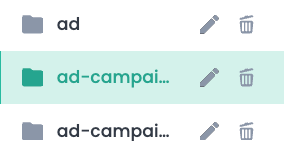
Filtering by Folder View: Assets in a folder
Click any folder in the sidebar to show only assets tagged with that folder.
Filter by multiple folders
You can select multiple folders at once using:
- Ctrl + Click (Windows)
- Cmd + Click (Mac)
This lets you combine folder filters to narrow down your results.
Creating, Renaming, and Deleting Folders
To manage folders:
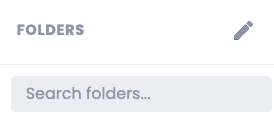
- Click the pencil icon in the folder sidebar
- You’ll enter edit mode
- From here you can:
- Create new folders
- Rename existing folders
- Delete folders you no longer need
*Important: Deleting a folder does not delete assets
Deleting a folder only removes the label from assets — your assets remain safely in the Media Library.
Adding Assets to Folders
There are two ways to add assets to folders:
Option 1: Drag & Drop (Fastest)
- Select one or more assets
- Drag them onto a folder in the sidebar
- Drop to assign them to that folder
*If an asset is already in that folder, you’ll see a friendly notification instead of creating a duplicate.
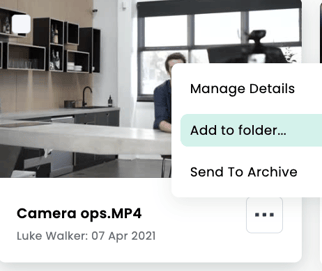
Option 2: Add to Folder (Context Menu)
- Click the three-dot menu on an asset
- Select Add to folder
- Toggle folders on or off
*Folders that are already applied will appear ticked, so you can quickly see what the asset belongs to.
Viewing an Asset’s Folders
To see which folders an asset belongs to:
- Open the asset’s detail modal
- Look below the Alt Text field
Folders will appear as chips, showing all folders currently assigned to that asset.
Smart Filter Reset
When you click a folder in the sidebar, the “Added by” filter automatically resets to Everyone.
This ensures you see all assets in that folder, not just the ones uploaded by you.
Folder Search
If your organisation has more than 5 folders, search becomes available in:
- The folder sidebar
- The “Add to folder” menu
This makes it easy to quickly find the folder you want.
Mobile View
On smaller screens, the folder sidebar collapses into a menu button showing your current folder name.
Tap it to open the full folder list as an overlay.
Your Tags are now Folders!
Folders are built on a new and improved tagging system.
If your assets had tags from the previous system, they have been automatically migrated into the new folder structure — no manual setup required.
Getting Started
Folders are available immediately for all organisations.
To start organising your library:
- Open Media Library
- Create folders using the pencil icon
- Drag assets in, or use Add to folder
This feature is especially helpful for teams managing large asset libraries who need faster categorisation and search.